Modem Firmware Update (FOTA)
Nordic Semiconductor's cellular SoCs contain two independently-updateable firmware components. To update them with Memfault, we use a separate Memfault Project for the modem firmware:
| Component | Updated via | Memfault Project |
|---|---|---|
| Application firmware | MCUboot swap | Your app project |
| Modem firmware | nRF modem bootloader | A dedicated modem project |
- Working app FOTA setup - see nRF91 Quickstart
- Memfault SDK ≥ 1.39.0
Step 1: Create a Modem Firmware Project
- Log in to app.memfault.com.
- Create a new project (e.g.
my-product-modem). - Copy the Project Key from
Settings → Project Keys. You will need
this in your firmware's
prj.conf.
Step 2: Configure Modem Project Key
Add the following to your prj.conf:
# Enable built-in modem FOTA support (Memfault SDK ≥ 1.39.0)
CONFIG_MEMFAULT_FOTA_MODEM_UPDATE=y

# Project key for the dedicated modem Memfault project
CONFIG_MEMFAULT_FOTA_MODEM_PROJECT_KEY="your-modem-project-key-here"
The optional CONFIG_MEMFAULT_FOTA_MODEM_SOFTWARE_TYPE (default "mfw") can be
set if you used a different --software-type when
uploading.
If you are using nRF Cloud CoAP support (CONFIG_MEMFAULT_USE_NRF_CLOUD_COAP=y)
and are on NCS >v3.4.0, CONFIG_MEMFAULT_FOTA_MODEM_PROJECT_KEY is optional,
and you can instead set the modem Project Key at runtime via the Device Shadow
with the memfaultModemKey field. When set via the following JSON, this value
will override the value of CONFIG_MEMFAULT_FOTA_MODEM_PROJECT_KEY:
{ "desired": { "control": { "memfaultModemKey": "your-modem-project-key" } } }
See the Device Shadow page for more details on configuring the shadow.
Additionally, see the nRF Cloud CoAP FOTA sample in NCS for an example of reading the shadow from the device and reporting the updated state to nRF Cloud.
Step 3: Integrate into Your FOTA Loop
Choose the integration path that fits your application.
Option A: Automatic (via existing periodic FOTA check)
For automatic modem FOTA, set CONFIG_MEMFAULT_PERIODIC_FOTA_CHECK=y. The
periodic upload handler will call memfault_zephyr_fota_start() and
memfault_zephyr_fota_modem_start() on a regular interval, performing app and
modem updates when deployed.
Option B: Manual
Call the FOTA functions directly at a time of your choosing:
// Check for app update first; if none pending, also checks for modem update:
int rv = memfault_zephyr_fota_start();

// Or check for a modem update only:
rv = memfault_zephyr_fota_modem_start();
Step 4: Upload Modem Firmware to Memfault
Nordic ships modem firmware as delta packages - a binary that upgrades from one specific version to the next. Download the modem firmware package for your target device:
The delta update filename contains the source and target versions, e.g.
mfw_nrf91x1_update_from_2.0.3_to_2.0.4.bin will update from
mfw_nrf91x1_2.0.3 to mfw_nrf91x1_2.0.4. This file will be uploaded directly
to Memfault without modification.
Nordic also provides full modem firmware packages (~2.1 MB) that can update from any version but require external flash storage on the device. See Nordic's full modem firmware update documentation for additional guidance.
To upload the modem firmware to Memfault, create a new Delta Release in your
modem firmware project. Set the From Version and To Version fields to
match the source and target versions in the modem firmware filename, and upload
the .bin file as the release payload. Match the Hardware Version field to
the hw_version you use when uploading device data to Memfault (e.g.
nrf9160), and see note below about the Software Type field.
You'll likely need to create a new Hardware Version in the modem project before uploading the release artifact. Navigate to Settings → Hardware Versions:
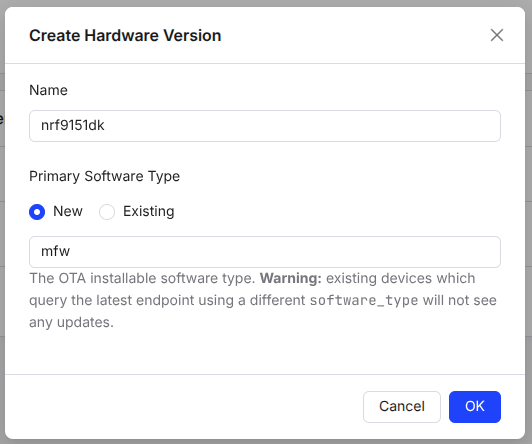
Preferably, you can upload the release payload using the
Memfault CLI, using --delta-from and
--delta-to to record the source and target versions and create a delta
release:
memfault --org-token YOUR_ORG_TOKEN \
  --org YOUR_ORG --project YOUR_MODEM_PROJECT \
  upload-ota-payload \
  --hardware-version YOUR_HW_VERSION \
  --software-type mfw \
  --delta-from mfw_nrf91x1_2.0.3 \
  --delta-to mfw_nrf91x1_2.0.4 \
  mfw_nrf91x1_update_from_2.0.3_to_2.0.4.bin
This both creates the new Delta Release, and uploads the payload to the Release.
software_type string once and use it consistentlymfw is the recommended convention and matches the SDK default. The value you
upload must match CONFIG_MEMFAULT_FOTA_MODEM_SOFTWARE_TYPE on the device
(which defaults to "mfw").
The created release should look like this:
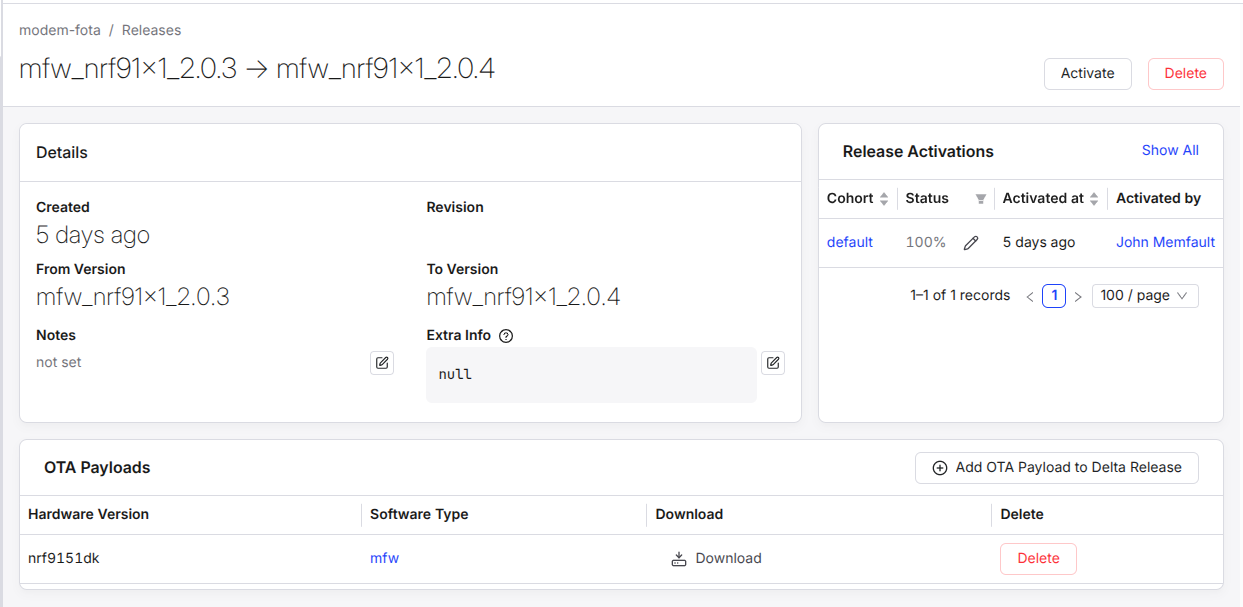
Activate the release on the default cohort to begin rolling it out.
Verification/Testing
You can trigger a manual modem-only FOTA from the shell with the
mflt fota_modem command:
uart:~$ mflt fota_modem
[00:01:06.124,755] <inf> mflt: Checking modem FOTA (current version: mfw_nrf91x1_2.0.3)
[00:01:06.524,902] <dbg> mflt: memfault_platform_log: DNS lookup for device-nrf.memfault.com = 44.206.80.55
[00:01:10.440,551] <dbg> mflt: memfault_platform_log: OTA check w/ device info: serial=xxx, hardware=nrf9151dk, software_type=mfw, software_version=mfw_nrf91x1_2.0.3
[00:01:13.656,463] <inf> mflt: FOTA Update Available. Starting Download with URL: https://...
[00:01:13.657,348] <inf> mflt: FOTA In Progress
...
# device will reboot and apply modem firmware update, which takes about 2 minutes to complete
After reboot, confirm the new modem version:
uart:~$ at AT+CGMR
mfw_nrf91x1_2.0.4
OK
If modem firmware is up to date, the logs will indicate it:
uart:~$ mflt fota_modem
[00:07:30.581,787] <inf> mflt: Checking modem FOTA (current version: mfw_nrf91x1_2.0.4)
[00:07:31.053,741] <dbg> mflt: memfault_platform_log: DNS lookup for device-nrf.memfault.com = 54.172.47.91
[00:07:34.266,632] <dbg> mflt: memfault_platform_log: OTA check w/ device info: serial=xxx, hardware=nrf9151dk, software_type=mfw, software_version=mfw_nrf91x1_2.0.4
[00:07:36.568,054] <inf> mflt: Modem firmware is up to date
While possible, downgrading modem firmware via Memfault OTA is not recommended. Nordic does not publish reverse-direction delta packages: downgrades are only possible over-the-air via full modem update.
To revert to a previous modem version for testing, download the previous modem
firmware package, and flash it appropriately. You can use either the nRF Connect
for Desktop app, or nrfutil command line app like so:
# install the "91" nrfutil command if not already installed
❯ nrfutil install 91
# perform the modem downgrade
❯ nrfutil 91 modem-firmware-upgrade --firmware ~/Downloads/mfw_nrf91x1_2.0.3.zip --verify --serial-number 1051243117
Troubleshooting
| Symptom | Likely cause |
|---|---|
modem_info_string_get returns error | LTE not yet attached when the FOTA check runs |
| OTA check returns 0 (no update) but release is activated | Verify software_type and software_version reported by the device match what was uploaded; check the Processing Log |
fota_download_any returns -ENOTSUP | CONFIG_DFU_TARGET_MODEM_DELTA not selected (defaults y on nRF91X; check west build -t menuconfig) |
| Download starts but device reports wrong version after reboot | For delta updates: the source version in the filename must match the modem firmware currently installed on the device |